Showing posts with label apps. Show all posts

Tuesday, April 10, 2018

Make Things Easier With Your Large Screen Device With the Help of These Cool Android Apps


When the era of smartphones began, screen real estate became one of the most significant features. In an instant, people are now after for bigger screens, which is why most manufacturers are producing larger smartphones.

Unfortunately, phones with larger screens can have an impact on usability. Attempting to operate a large device with only one hand can often lead to screen shattering drops or unintentional commands. Luckily, manufacturers have noticed this growing problem and attempted to remedy the situation.

Apple has a feature called “Reachability mode” for one-handed operation of iOS devices, and companies like Samsung and LG have similar settings you can enable for certain Android devices.

However, if you happen to use an Android device that doesn’t have a “one-handed” mode, don’t worry. Below are some apps to help you operate your large device easily with only one hand.

Simple Control


Reaching down to the bottom of your device to tap your Home, Back or Overview buttons can require some serious dexterity. Users of bigger phones often have to awkwardly adjust their grip on their device in order to reach these buttons. This can increase the risk of dropping the phone.

Fortunately, Simple Control places virtual Home, Back and Overview buttons on the edge of either side of your screen. This enables users to access these functions without having to stretch their thumb to the bottom of the phone. Furthermore, the buttons disappear from view when not in use, so they won’t obstruct your homescreen.

Circle Sidebar


With a large device, simple tasks like opening your app drawer can be a dangerous balancing act. Luckily, Circle SideBar allows users to organize and access apps easily via a radial menu. After installation, users can determine what action opens Circle SideBar, like a swipe from the left edge of the screen. Once open, users can scroll through a customizable list of apps and settings using a single thumb. There are numerous customization options, including the size of the wheel and app icons. While Circle SideBar is a free app, there is a premium version that boasts additional features.

Omni Swipe


Phones with larger screens simply require bigger hands. Unfortunately, if you have smaller hands, this can pose a problem. Simple things like launching apps or pulling down your notification bar can be a chore.

Omni Swipe is an easy way to access your favorite apps, contacts, settings and notifications, all with a single flick. Users simply swipe from the bottom left or right corner of a device to open a fully customizable radial menu that houses all of your most used shortcuts. In addition to being easy to use, the app is tiny at just over 1MB and completely disappears from view when not in use.

Assistive Touch


Assistive Touch places a small button icon anywhere on the device’s screen. Tapping on this button opens a floating panel that allows users to access their favorite apps, settings and toggles. The button is fully customizable and can open your notification bar, adjust the brightness and much more. In addition, you can assign commands for double tapping or holding down the button.

For example, you can make it so that double tapping the button opens your camera, and holding it down shuts off the power to your device. This gives the user access to a wide variety of controls all in a single spot, with no more reaching.

Google Keyboard


The keyboard from Google is one of the best available, with speedy performance and accurate text prediction. In addition, it supports swipe typing. Unfortunately, large screen devices typically have to be held with both hands, rendering the user unable to reach all of the keys to make use of the swipe typing feature.

Fortunately, Google Keyboard has a one-handed mode that makes typing with one hand easy. To activate one-handed mode, simply hold down the comma key for a few seconds. The keyboard will shrink and shift to one side of the screen, enabling users to reach all keys with a single thumb.

Tuesday, February 13, 2018

Track Your Data Usage Easily With the Help of These Great Android Apps


If you're looking for ways on how to maximize usage out of your mobile data plan, you need to closely monitor your data usage. Although Android has a built-in data tracker, there are times when it doesn't suffice to your needs. Luckily, there are apps that can offer more than what Android's built-in data tracker can do.

GlassWire


GlassWire is a great solution if real-time tracking is important to you. By default, GlassWire will show a live graph depicting the data usage over the last minute. The “Alerts” section will warn you when an app initiates a data connection for the first time, so you can keep an eye on mischievous data eaters. GlassWire also adds information to the notification bar, detailing the data usage over that month as well as a very useful bandwidth monitor for real-time tracking.

Data Usage Monitor


Data Usage Monitor is a very basic app that’s best used for tracking how close you are to your usage limits. The graph on the main page shows you a rough trajectory of your current usage as well as an estimate on when you’ll reach your limit. The apps page brings up all the apps you’ve used when you hit the refresh button so you can see who the main offenders are. There’s a second app this developer has created that can monitor Internet speeds, making for a nice combination of apps.

3G Watchdog


3G Watchdog does a lot more than track 3G connections. It can also track 4G and Wi-Fi data usage. Featured within the app is a real-time graph to see how your data is being used by apps as it happens. You can set up a plan and let 3G Watchdog report on how far through your plan you are. It even puts a small icon in the notifications tray that lets you know how much data you’ve used so far.

My Data Manager


Once installed, My Data Manager will keep track of all the data you use. It nicely separates it into Mobile and Wi-Fi traffic, so your Netflix-watching back home doesn’t skew the data.

You can see how much data each app used that day on the main screen, or scroll through the Apps menu to see a day-by-day history of how each app is doing. There’s even a map feature that pinpoints where you were when you used your mobile data. My Data Manager also places a status bar in the notifications area so you can track usage as it happens, but this can be turned off if you find it annoying.

Internet Speed Meter Lite


Internet Speed Meter Lite is the perfect choice for people who don’t want to be inundated with features. There are no graphs, charts, or even app-by-app data logs. What makes this app very useful, however, is the live bandwidth notification in the top left. This allows for real-time monitoring of how much data an app is using while you use it. You can also tell the app to stop tracking traffic and shut itself down, which is a surprisingly absent feature in many data usage monitors.

Friday, July 28, 2017

Portable Apps for Mac You Will Find Handy


It may sound extremely wrong to plug in a USB stick into a Mac because for some, running external apps on a Mac may ruin its slick image. But for your awareness, portable apps are highly useful, especially if you don't want your Mac system to look cluttered with these piles of useful tools. Below are some of the best portable apps for Mac that you shouldn't consider as a waste.

VLC Media Player


When you get a new computer, one of the first things you need to do is to install VLC player on it. For years, this has been the best media player app around for both Mac and Windows, thanks to its exceptional compatibility with most of the codecs out there -- whether famous or obscure. Having it on a USB drive means that whenever you plug yourself into a Mac, you'll have the power to watch just about any videos you like using it.

Chromium


You may not be familiar of Google Chrome's open-source, non-Google owned sibling, Chromium. It's a more lightweight version of Chrome that's less strenuous on the CPU and has a version that will run on Macs off your USB stick.

Having a portable version of Chromium is particularly handy if you prefer not to leave your footprint at an Internet cafe or on other computer that will be used by other people. And since it runs from your USB flash disk, it doesn't store cached data on the local computer, and cookies will stay on your USB stick, too.

XMind


One of the better apps for super-accessible and easy-to-use mindmapping and diagramming is available in portable form for the Mac, which means you can access its robust set of tools wherever you go.

Alongside mind-mapping, XMind also lets you create neat, clean presentations and has a delightfully clean workspace UI, which will help keep you efficient by keeping your headspace organized. If you don't want to create something from scratch, you can just use one of the many templates that is included in the app.

Portable Inkscape


Inkscape is the perfect vector graphics editor, built for people in the business of creating logos, illustrations, flashy-looking charts, infographics, and many more. The app has come along in leaps and bounds since it was first launched in 2003 and at this point almost matches illustrator in every area -- from CMYK profiles to high-quality rendering and all other bells and whistles. Having it on a portable USB stick could prove critical to all the freelance designers and illustrators out there.

Portable Gimp


The discerning choice, if you want most of the features of Photoshop without causing a dent on your personal finances, go with Gimp. Gimp is a free, open-source image-editing suite that for a long time has been the top Photoshop alternative for just about everyone.

The interface is like a slightly less slick version of Photoshop, letting you create and edit images using a layer-based system. With its deep feature set, Gimp is very much aimed at more advanced users, but if you fit that category, or are a professional in the field, then having Gimp on a USB stick is a must.

Thursday, April 27, 2017

Find Your New Job Easily With These Reliable Mobile Job Search Apps

Nowadays, finding the "dream job" or even just any decent job can be tough. And while competition for limited professional high-paying corporate jobs is intense, there's now a great number of mobile job search apps that can greatly help you achieve your future "work goals."

So don't lose hope and try one of these job search apps below.

Monster


Monster is like the simplified version of LinkedIn/LinkedIn Jobs but without the people network. The app lets you search for job leads, track your job applications, update your resumé (no online portfolio like LinkedIn), receive messages (some legit and some are not), and tweak your settings.

The best advice is to make sure that your resumé is current and updated on all of your mobile job apps. This way, you are sure that you're sending out the same content whenever you're blasting an Easy Apply resumé from whichever app you are on.

The Monster app is available for iOS and Android users.

Indeed


This app doesn't come with all the bells and whistles you would see in other apps like LinkedIn, but since Indeed is a job lead aggregator, you'll probably find many of the same job leads here that you'd find on the other job search apps.

Once you update your resumé and set up your job search agents (via the web interface), you'll be taken to a ton of job leads under "Recommended Jobs" from the app's home screen.

You can download the app for iOS and Android.

LinkedIn


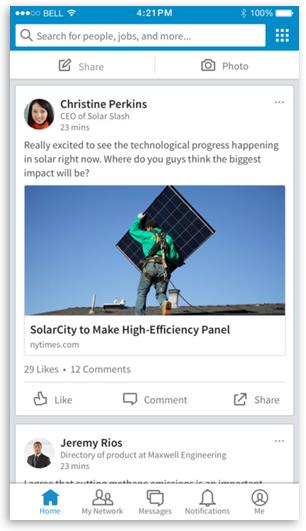
The app for LinkedIn is the simplified version of LinkedIn.com. All of the base components appear at the bottom of the app's screen -- Home, My Network, Messaging, Notifications, and Me. The Home screen of the app looks similar to Facebook's news feed, and sometimes a job posting or two.

And similar to the features offered in the LinkedIn website, the app allows you to update your resume, add companies you've previously worked with, add contacts, co-workers, former supervisors, and so on. Besides the social and labor component, it also shows us loads of news related to your work interest. If you want to be updated, all you have to do is consult the app's main page.

The app is available for iOS and Android.

LinkedIn Jobs


As versatile as the LinkedIn app may be, LinkedIn Jobs is somewhat bare bones. The app's home screen also functions as a place where you can do a search. The only searching parameters you can do here is the "Job title or keyword" and "Location." It'll default to whatever location you have set as yours from your LinkedIn member account.

One of the best features of this app is the Easy Apply, which lets you use your LinkedIn profile to quickly apply for a position instead of having to fill out those dreadful online Applicant Tracking System job applications. However, to make sure that your job application doesn't disappear elsewhere, you still need to use the main LinkedIn app to contact those companies you would like to pursue your application with.

Download the app for iOS and Android.

Glassdoor


With the Glassdoor job search app, you can easily find the job you really love and get hired. It provides access to the latest job listings from companies hiring right now, and you'll have an inside look at company reviews, salaries, benefits, and office photos shared by those who know the company best -- the employees. It also has a tool called Know Your Worth, which can help you determine how your market value has trended over time, how your market value compares to typical workers in the same field, and also plot your current base pay.

With Glassdoor, you can tap into the world's most comprehensive career community to search job openings, discover your earning potential, and see what it's really like to work at thousands of companies worldwide.

The app is available for iOS and Android users.

Friday, March 24, 2017

4 Awesome Android Apps For Your Wireless File Transfer Needs


Have you ever had an instance wherein you want to transfer a file to (or from) your PC from your Android device, but don't want to go through the hassle of connecting different kinds of cables just to accomplish that task? If your answer is yes, then you may want to check out these helpful apps that will enable you to wirelessly transfer files from one device to another.

Airdroid


Airdroid is a remote access and wireless file-transferring tool, which works by asking the user to sign in from a computer and then creates a virtual desktop that has the capability to access contacts, download apps from the phone to the PC, send text messages remotely, and transfer files back and forth.
The app lets you choose how to complete the connection between the two devices you'll be exchanging files with, and provides all the guidance you need along the way. Other major features include:
  • Notification Mirror - mirror phone notifications from any allowed apps to your computer.
  • Backup & sync - backup photos and videos from phone to computer
  • SMS & Contacts management - send and receive SMS, and manage phone contacts from the desktop.
  • AirIME - use your desktop keyboard to type on your phone
  • Record screenshot - record phone screenshot with one click, no root required (Desktop client only)
  • Speed boost - clean memory and boost phone speed
  • Other phone management features (Web client only)
    • Find phone: locate your phone when it's lost
    • Remote camera: see through the lens of both front and back cameras.
    • Apps & Media: manage photos, ringtones and videos, upload and install and export apks.
Amaze File Manager


The Amaze File Manager app doesn't only let you manage your files on Android with some really slick material design, it also has the ability to host its own FTP file transfer server that anyone can connect to. This means any user can fire up Filezilla (or any other FTP client) and quickly place or remove files from the Android device. However, FTP isn't the only feature this app can offer. Amaze File Manager also has the ability to mount Samba file shares. This feature is perfect for those who have a Samba file server on the network and want to wirelessly grab a file or two.

Portal


Portal is a wireless file transfer tool created by Pushbullet that allows users to throw files into a "portal" and then transfer them wirelessly from any computer to any mobile device with the portal app installed. To transfer a file, the user only need to do is open the app, head to the portal website and scan a unique QR code. After that, it is possible to use the wireless network to instantly beam any file right away.

A lot of mobile users will be glad to know that they can easily get a file from one place to another. Unfortunately, transferring files with Portal is a one-way type of system. Currently, there isn't any way to transfer in reverse. Still, if you're looking for a program that can send a file from PC to phone, Portal is a good choice.

Sweech


Several wireless transfer tools on Android are dressed-up FTP tools. The app itself hosts an FTP server for the user to connect to over the network. This works well, and even though FTP is quite an old technology, it has its uses. Still, sometimes you might want to transfer files from one device to another instead of that standard "access FTP on a Windows PC."


Sweech doesn't only make it possible for users to access the phone for file transfers via an IP address, but the app has other features as well. If you install Sweech on your Android phone, you can the "Android beam" to wirelessly transfer files from one device to another. Also, it has the ability to generate a unique QR code for file-transfers because typing long IP addresses in the web browsers can be a hassle.